Knowledge Base
Guideline to set attachment and email size restriction
A) Guideline to set the Attachment Restriction:
- From the dashboard, go to Incoming-Protection Settings
- Click on Attachment Restrictions.
- Click on Add new extension and then add the extesion that needs to be blocked.
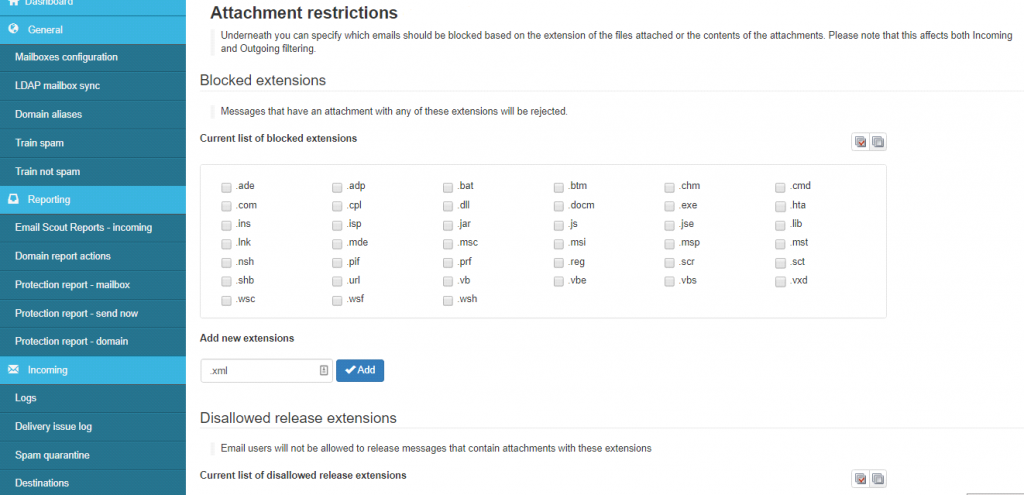
Fig7.1
NOTE: Some of the extensions are blocked by default you can either block or remove the extension from the list to allow it.You can also add new extension under “Add new extension” text block.
- To remove the added extenion select the particular extension and then click on remove.
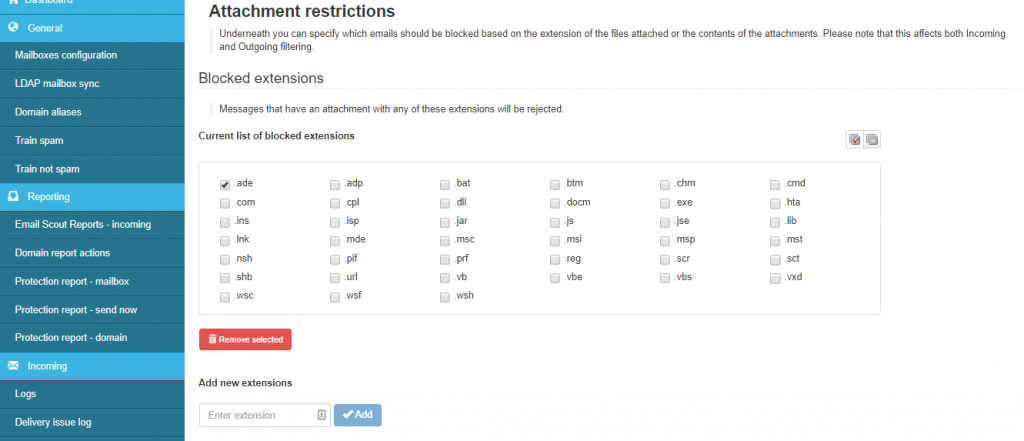
Fig7.2
- As per your requiremnt you can set the Restriction option,Additional Restriction,and the extensions which need to be scanned for viruses and other malware by adding that particular extension under the Scanned Link Extension.
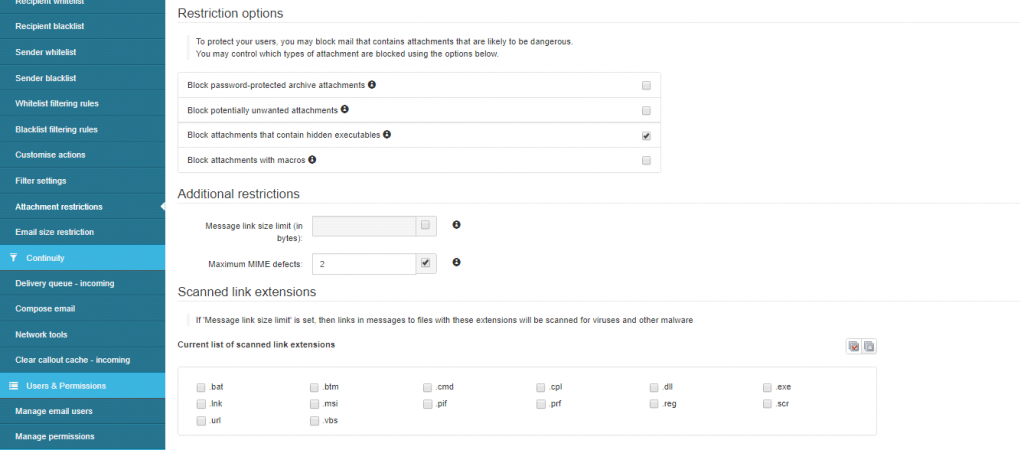
Fig7.3
B) Guideline to set the Email Size Restriction:
- From the dashboard, go to Incoming-Protection Settings
- Click on Email Size Restriction.
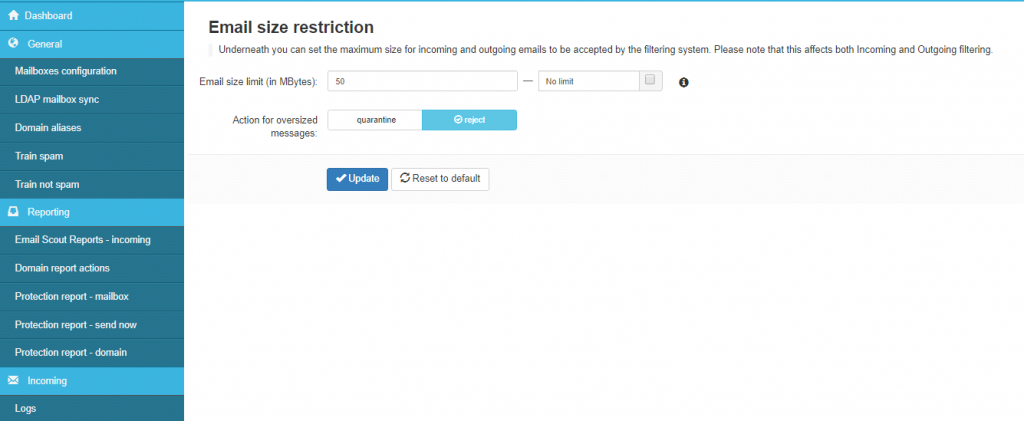
- Set the Email Size Limit accordingly and select the action that needs to be performed:
- Enter email size limit or if you don’t want any limitations tick “No limit”.
- Once email size is set, you will get the option to quarantine or reject the email.
- Update the settings.