
Knowledge Base
How to reset windows user password
Step 1:
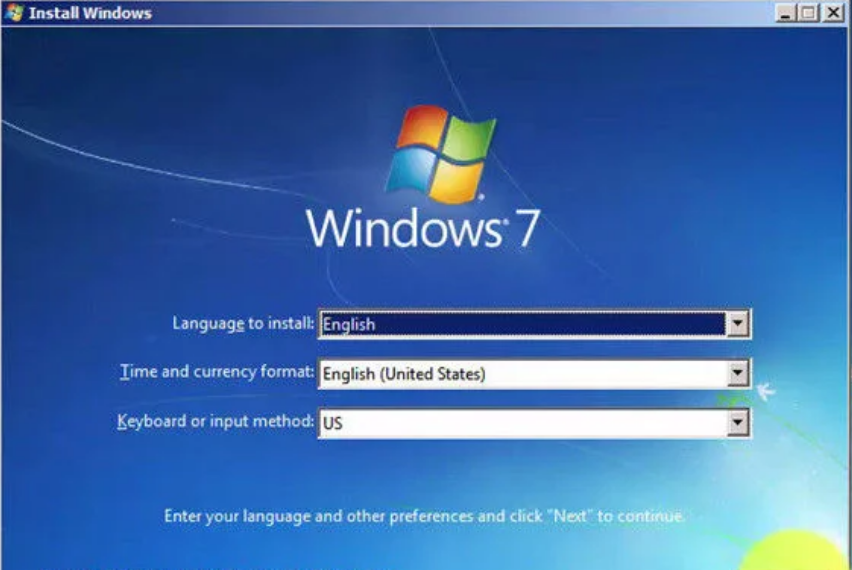
- Boot into Windows 7 installation DVD
- Click on Next
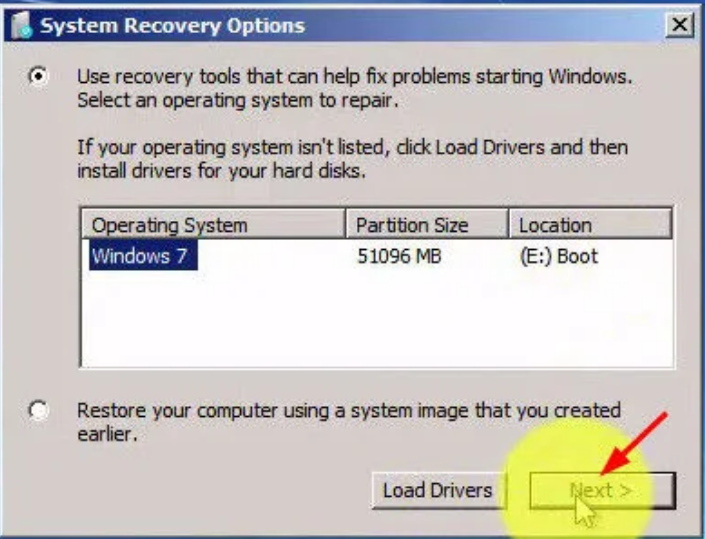
Step 2 : Take note of windows 7 drive letter. In this example it is drive E
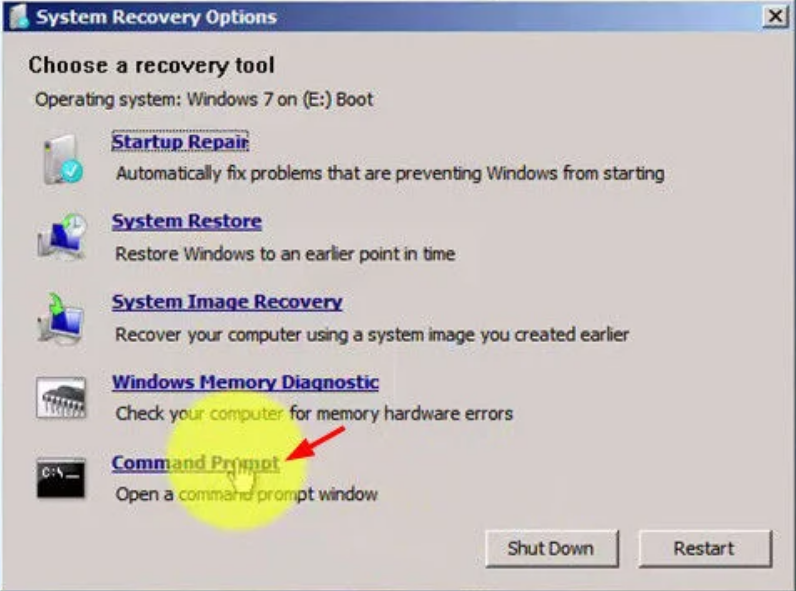
Step 3: Click “Command Prompt” to access the command prompt window.
Step 4:
- Replace UTILMAN.exe with CMD.exe
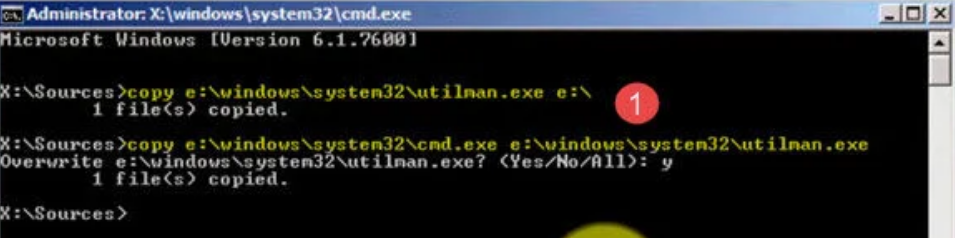
- Replace drive letter E with your Windows 7 drive letter
- To backup utilman.exe, run command:
copy e:\windows\system32\utilman.exe e:\- Replace utilman.exe with cmd.exe
copy e:\windows\system32\cmd.exe e:\windows\system32\utilman.exeClick ‘Restart’ to reboot Windows
Step 5: Click “Easy Access” icon
It will execute cmd.exe which open up command prompt window.
Step 6: Reset User password
- To reset user password (ex: administrator), run command:
net user administrator abc@123- Replace abc@123with your own password
- Login Windows with that user and the new password
Step 7: Restore Utilman.exe
- You will need boot back into Windows 7 installation DVD
- Choose ‘Next’, then ‘Repair your computer’
- Take note of Windows 7 drive letter where it’s being install
- Select ‘Command Prompt’
- To replace current utilman.exe with the backup in earlier step, run command:
copy e:\utilman.exe e:\windows\system32\utilman.exe- Click ‘Restart’ to reboot Windows
Step 8: Check “Ease Access”
- Click on Ease Access to make sure it’s the version we just restore
- Login Windows Step 9: Delete Backup Utilman.exe