
Knowledge Base
How to SSH the Linux server from Windows OS using Putty
1) First you will need to download putty software from here and install it.
2) Now follow the below steps to accessing the SSH
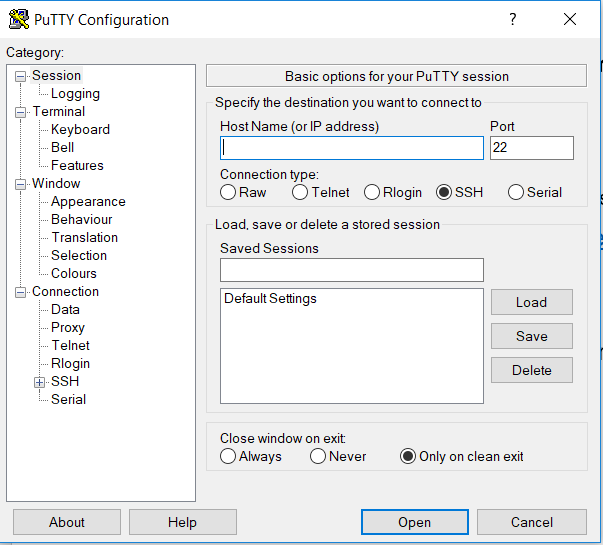
- Click on putty icon then below screen will appear
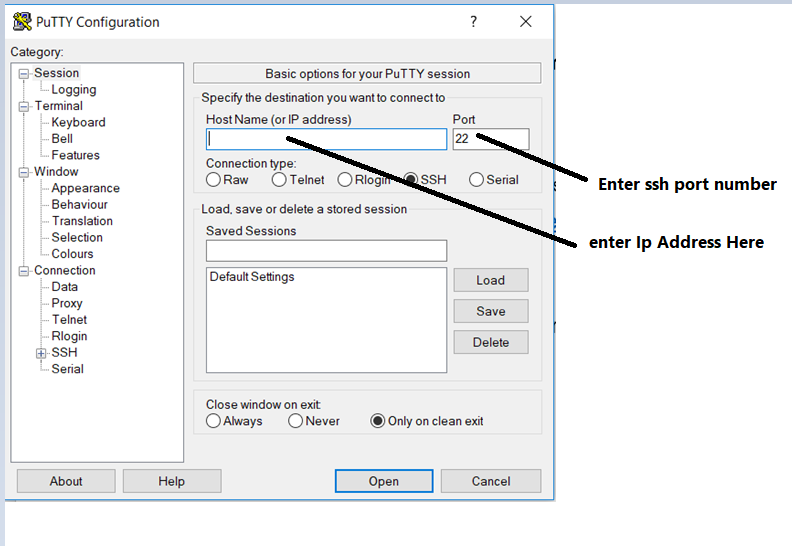
- Then enter “HostName(IP address)” and port number then click on open button
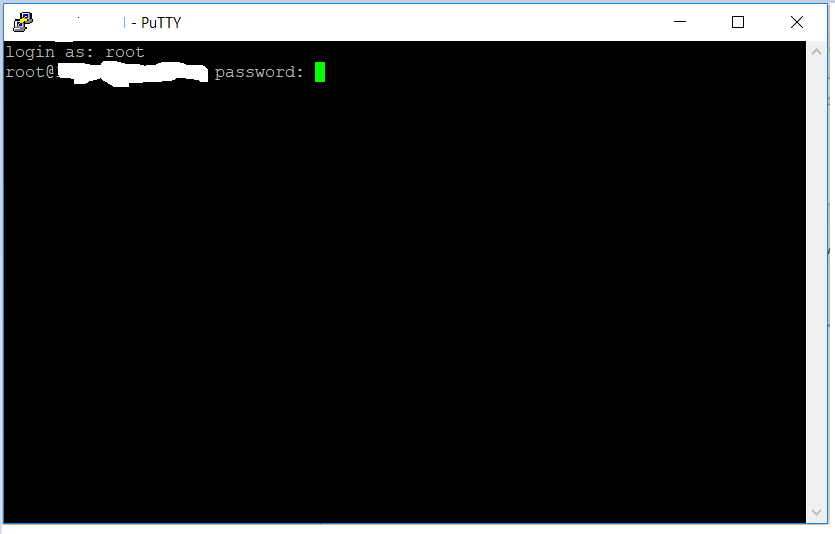
After click on open button below screen will appear then enter the username and password.
How to SSH the B server from A server

Common Issues of SSH connectivity.
- If you can’t SSH to your Server, you should check that the SSH service is running
# systemctl status sshdkindly run the below command to start the sshd service if your sshd is not in running state
# systemctl start sshd- Connection Timeout error, Connection Refused
- Verify that the host IP address is correct for the Server.
- Verify that your network supports connectivity over the SSH port being used. Some public networks may block port
22or custom SSH ports. You can do this by, for example, testing other hosts using the same port with a known working SSH server. This can help you determine if the issue isn’t specific to your Droplet. - Verify the firewall rules Check that they’re not set to a default policy of DROP and the port is not added to allow connections.
- Verify that the service is currently running