What is FTP? How to connect it ?
OVERVIEW:
File Transfer Protocol (FTP) is a standard Internet protocol for transmitting files between computers on the Internet over TCP/IP connections. FTP is a client-server protocol where a client will ask for a file, and a local or remote server will provide it. Using FTP, a client can upload, download, delete, rename, move and copy files on a server.
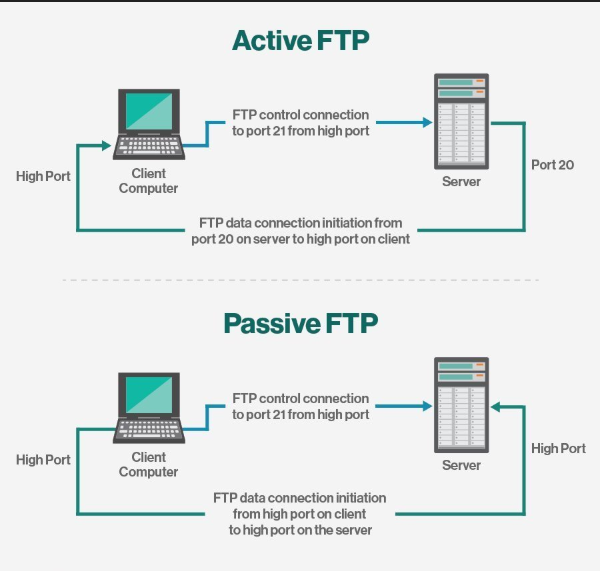
FTP sessions work in passive or active modes. In active mode, after a client initiates a session via a command channel request, the server initiates a data connection back to the client and begins transferring data. In passive mode, the server instead uses the command channel to send the client the information it needs to open a data channel. Because passive mode has the client initiating all connections, it works well across firewalls and Network Address Translation (NAT) gateways.
How to connect FTP :
- Steps to connect FTP through browser and download the files from server to the local system.
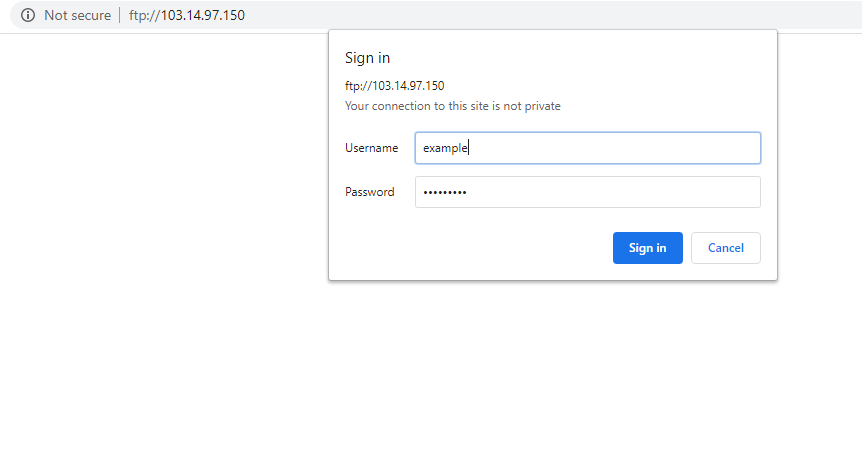
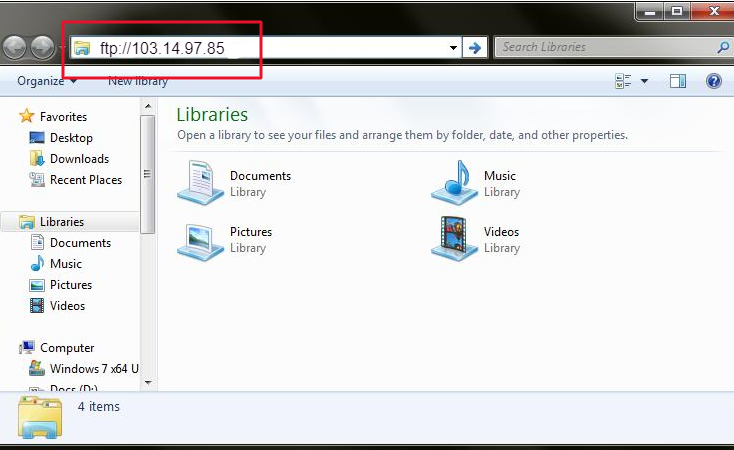
- Put ftp://ServerIP on which the Ftp account is created.
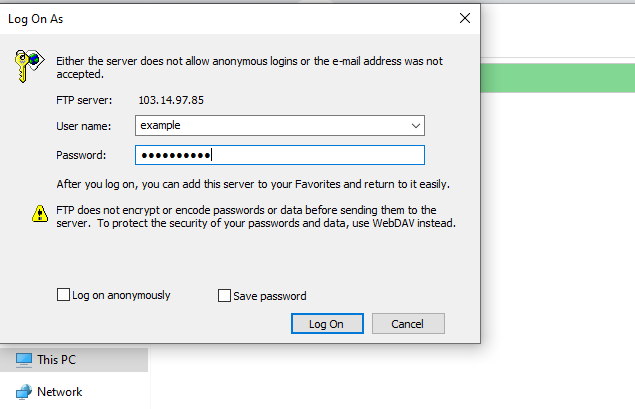
- Put username and Password. (refer the screenshot for better understanding)
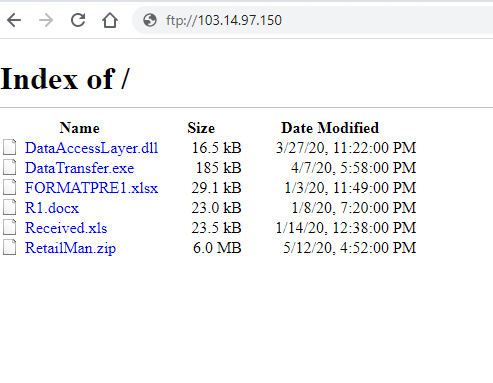
After providing the details you will get all the files uploaded on the server,just by clicking on the folder you can download the file into your local system.
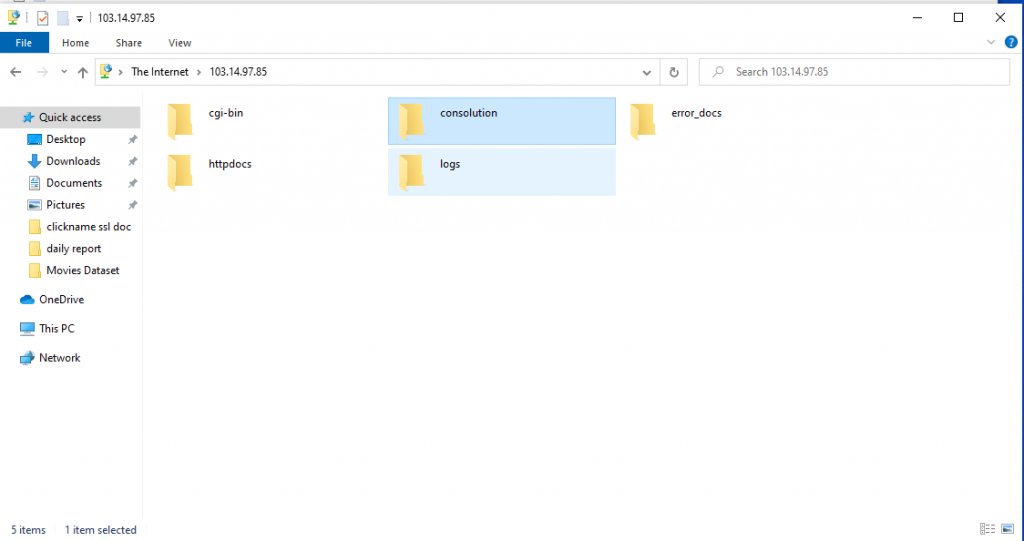
- Steps to connect FTP through “This PC”and upload the files from the local system to the server.
- Click the Windows logo(start) in the bottom-justify corner of the screen.
- Then search “This PC” app icon at the top of the Start menu.
- Type the ftp://ServerIP on the address bar. (for reference check the attached screenshot Image1.4)
- Provide the FTP Username and Password uncheck the “Log on anonymously” box and click on LogOn.
- Once it is connected you will be able to view the files present on the server then you can upload the files from local system or download the files from server.