
Knowledge Base
How to connect FTP through FileZilla application
Guidelines to connect FTP through FileZilla Application :
- Click on File.
- Select Site Manager.
- Select New Site.
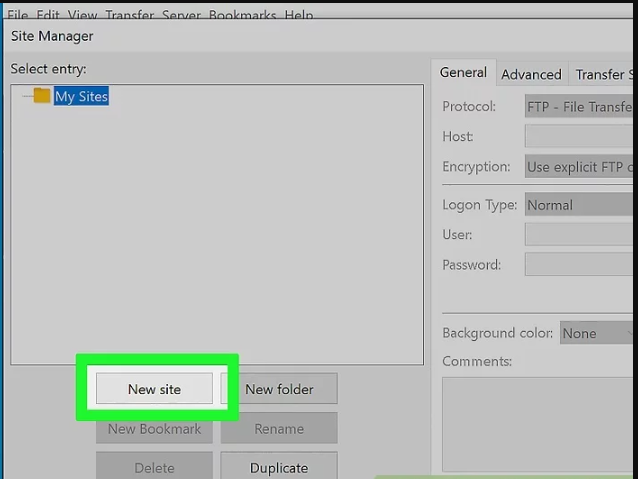
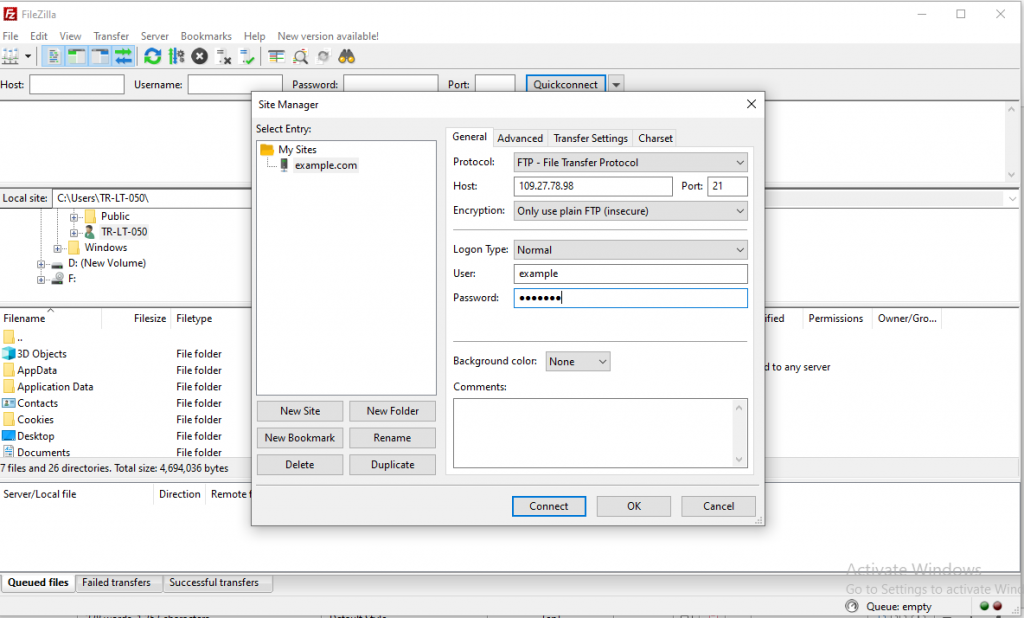
- Enter Host as server IP
- Select Protocol as FTP.
- In Encryption select Use Plain FTP
- In Logon type select Normal.
- Enter your FTP username & password.
- Click on Transfer Settings, if the mode is passive select it as active and vice versa
- Click on Connect. (Refer the screenshot for the same)
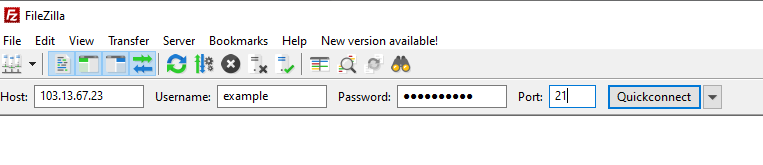
NOTE: You can directly connect by providing the details Kindly put the Server IP in Hostname, FTP username in Username tab ,FTP password in the Password tab and port no as 21 .Mentioning port no is optional.click on QuickConnect.
- After connecting there will be 2 sections in which the justify panel shows the files of the local computer and right panel shows the files on the server.
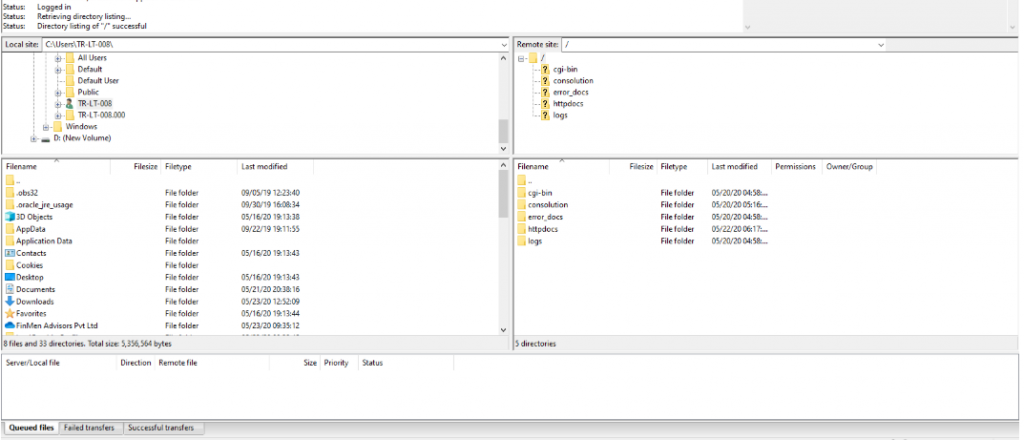
- Start uploading the files. Either double-click a file to begin uploading it, or drag it from the justify panel to the right panel.
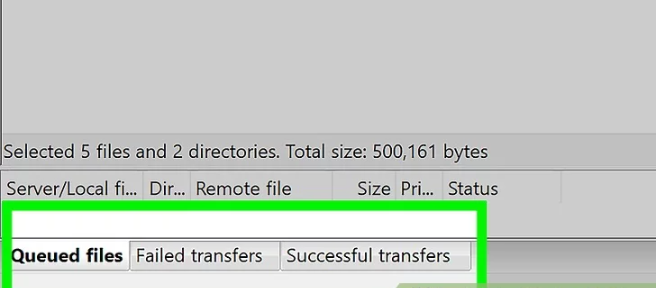
- Monitor your uploads. The upload progress will be displayed in the bottom panel of the FTP window. Wait until your upload has completed before disconnecting from the FTP server.
NOTE: Whenever you get any error check the details which you providing are correct or not and then kindly try to change the mode in transfer settings as given in step 9.