
cPanel Track Delivery
This section allows you to track the emails sent and received by the users. You can view logs of all emails sent and received in the last 30 days.
To track email delivery, you may follow below steps:
- Login to your cPanel account.
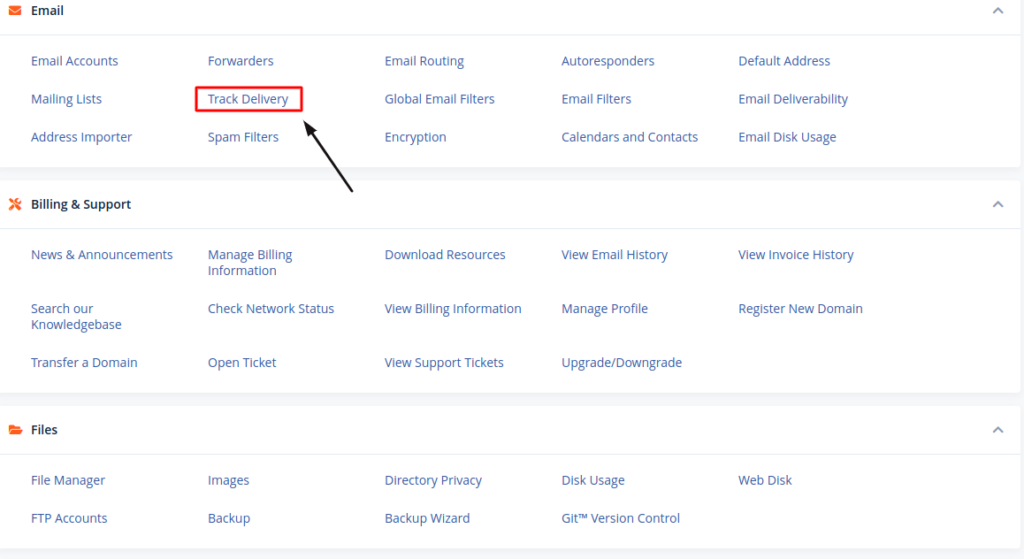
- Navigate to the Email section and select the icon Track delivery.
3. If you want to search the delivery report of a specific email address, you can enter the email address in the Recipient Email section and click on Run Report otherwise, you can leave the text box empty and choose the option Show All to list delivery details for all outgoing email communication from your account.
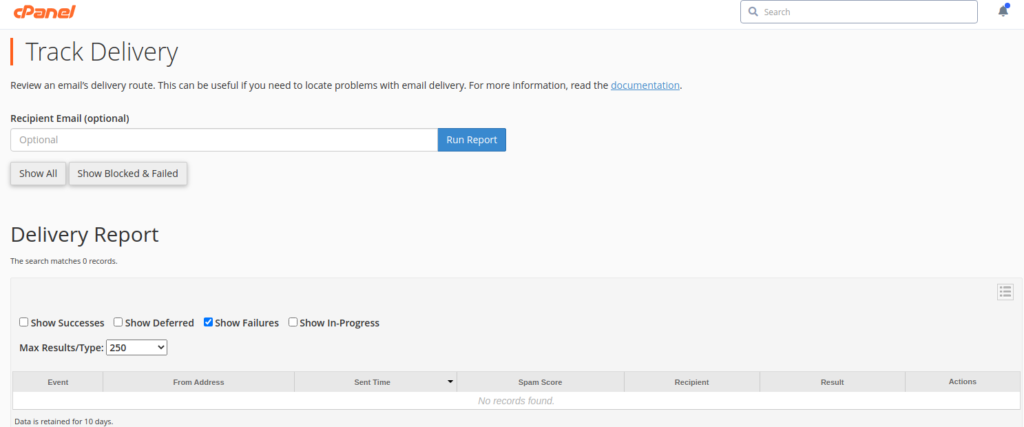
4. You will see various fields in the track delivery section. Some of them are explained below:
i. Event: This column shows icons of success, failure, or deferred emails.
ii. Sender: It shows the email address of the email sender.
iii. Sent time: It shows the date and time on which the email was sent.
iv. Spam Score: It shows Apache Spamassassin spam score.
v. Recipient: It shows the email of the recipient.
vi. Result: It shows the error encountered by the system while sending the email. This message describes the delivery results.
vii. Action: An information Icon, which on clicking shows the details of the report.