
Knowledge Base
How do I create a sub-domain using cPanel?
Let’s assume, your website is example.com and you want to create a test page. You can create a subdomain. Let’s say it test.example.com.
However, many people get confused between a subdomain and a subdirectory. Let’s clear out that first here:
test.example.com is a subdomain.
example.com/test is a subdirectory.
Now, we will walk you through the process of creating a subdomain. Follow these simple steps.
- Locate the ‘DOMAINS’ section and click the Domains icon
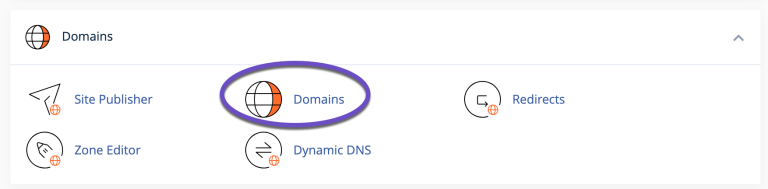
- A new tab will open for you which will directly guide you to add the subdomain’s details.
- Click on the Create A New Domain button.
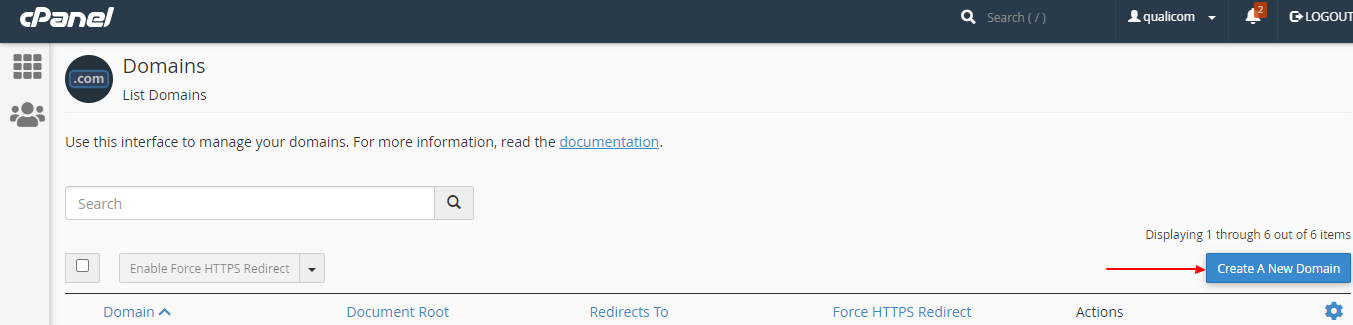
Enter the following information:
-
- Domain: enter the subdomain that you want to create
- Document root: leave the checkmark empty for the Share document root option.
- Home icon: choose a subdirectory for it in your account’s home directory (above public_html). This subdirectory will store your subdomain’s files.
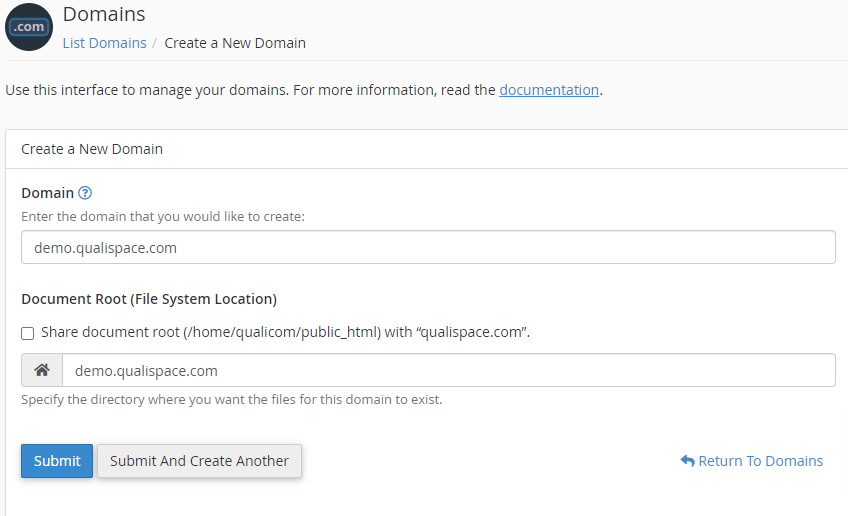
- The last step is to click Submit button. The subdomain will be created
- To verify if the Subdomain has been created correctly, you can click on the Go Back button and it will take you to the subdomain’s management page where you can see the current subdomains which have been created.
- Scroll down a bit and check the subdomain you have just created. If you see the subdomain there then congratulations, you have successfully created a subdomain.