
Knowledge Base
How to create a rule that blocks messages with executable attachments?
- Login to control panel of Microsoft Office 365 using following URL: portal.office.com
- Go to Admin Panel.
- In the Admin Center go to Exchange >> Mail Flow >> Rules.
- Click Add (+)and then select ‘Create a new rule’.
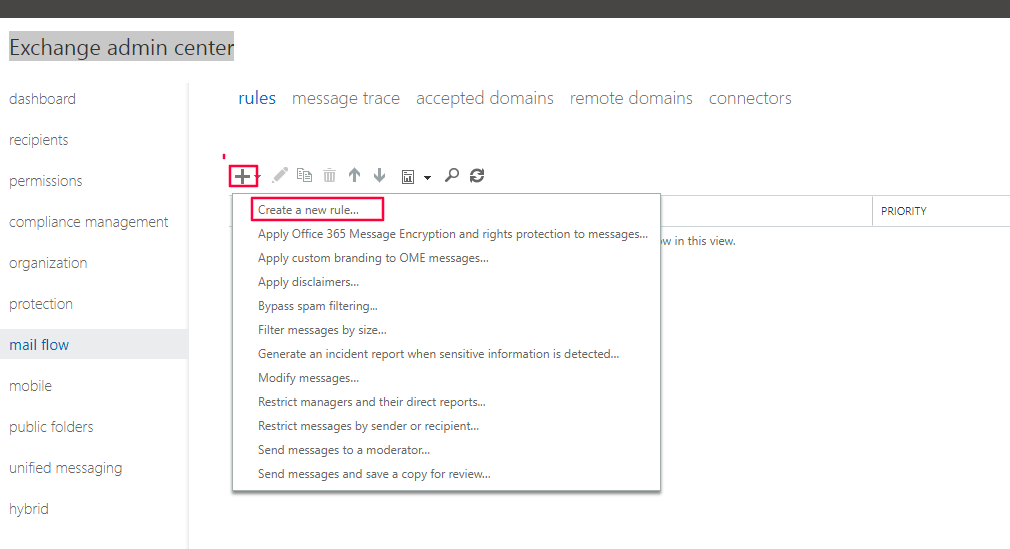
5. In the New rule page that opens, configure the following settings:
- Name: Enter a unique, descriptive name for the rule.
- Click More Options.
- Apply this rule if: Select Any attachment
- >> has executable content.
- Do the following: Select Block the message and then choose the action you want:
- reject the message and include an explanation: In the Specify reject reason dialog that appears, enter the text you want to appear in the non-delivery report (also known as an NDR or bounce message)
- reject the message with the enhanced status code of: In the Enter enhanced status code dialog that appears, enter the enhanced status code that you want to appear in the NDR. The default rejection text is: Delivery not authorized, message refused.
- reject the message without notifying anyone
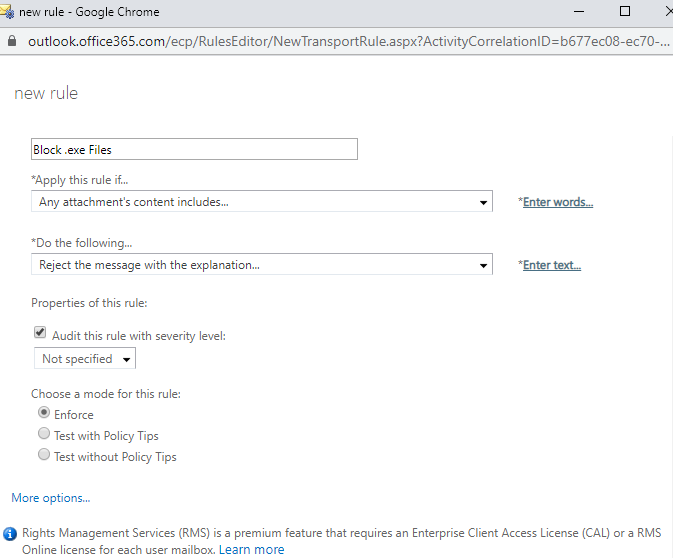
6. When you’re finished, click Save. Your attachment blocking rule is now in force.