
Knowledge Base
How to install SSL Certificate in Plesk Panel
Step 1: Create CSR from Plesk panel:
- Login to Plesk Panel.
- Click on domain.
- Click on SSL/TLS certificates.
- Click on +Add SSL/TLS Certificate.
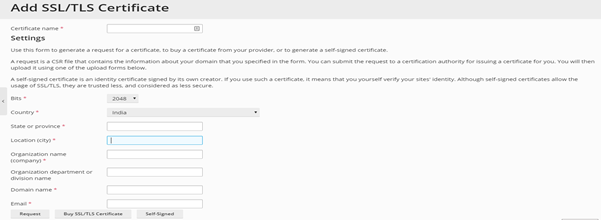
- Enter the details. You can refer to below screenshot.
- Click on request.
- The CSR will be generated.
Step 2: After CSR generation provide the CSR to SSL certificate provider. They will provide you verification method to complete verification process.
Step 3: Once you have completed the verification process, the SSL provider will provide you with the SSL certificate file.
Step 4: Uploading SSL certificate file in Plesk panel.
- Login to Plesk Panel.
- Click on domain.
- Click on SSL/TLS certificate.
- There will be your domain name >> Click on that.
- There will be option of upload certificate >> Upload the certificate and CA bundle.
Step 5: Once you have upload the certificate files you need to enable SSL/TLS support.
- Click on Hosting setting in your Plesk panel.
- Under security section enable SSL/TLS support and Permanent SEO-safe 301 redirect from HTTP to HTTPS.