Knowledge Base
Steps to setup CodeGuard
- Login to CodeGuard Panel.
- Now you need to connect your website
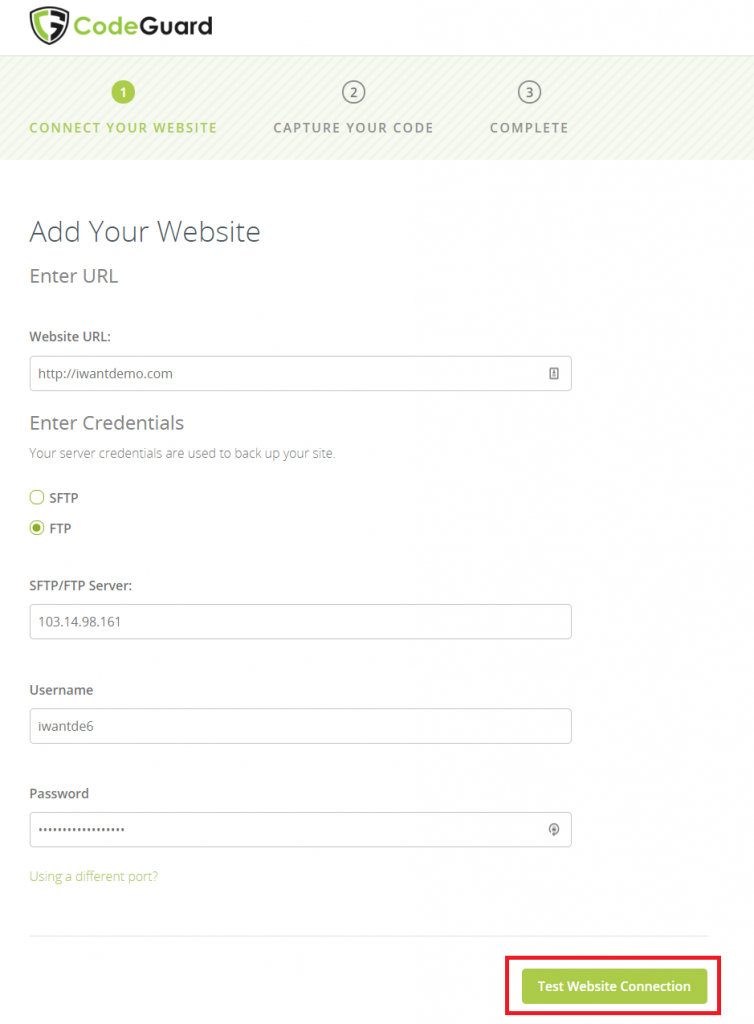
- Enter Website name & Ftp details and click “Test Website Connection”.
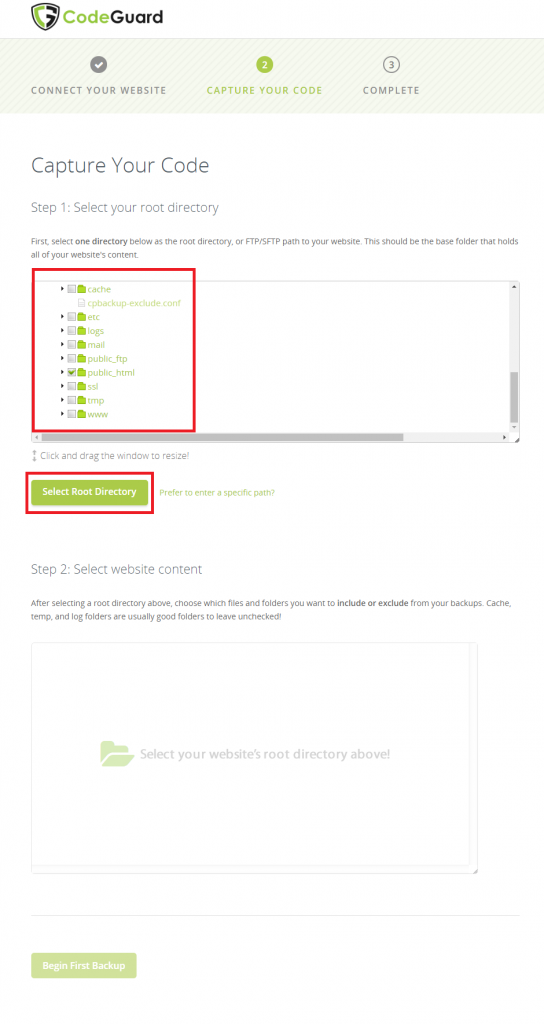
- Once FTP connection is successful, you will able to see root directory selection option.
- Tick the directory which you want to backup and click “Select Root Directory”
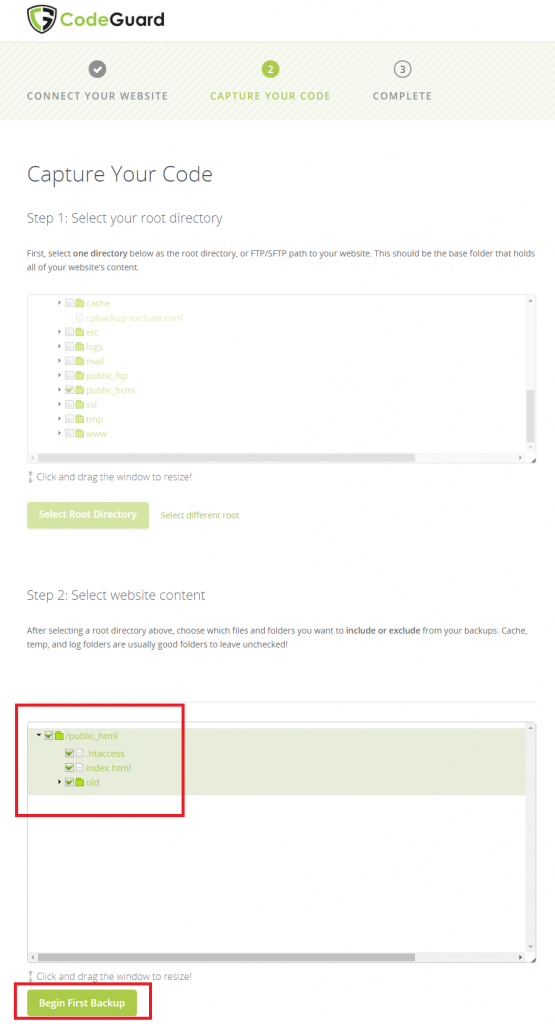
- After selecting “Root Directory” you can choose which all files you need to include and exclude from backup and click “Begin First Backup”.
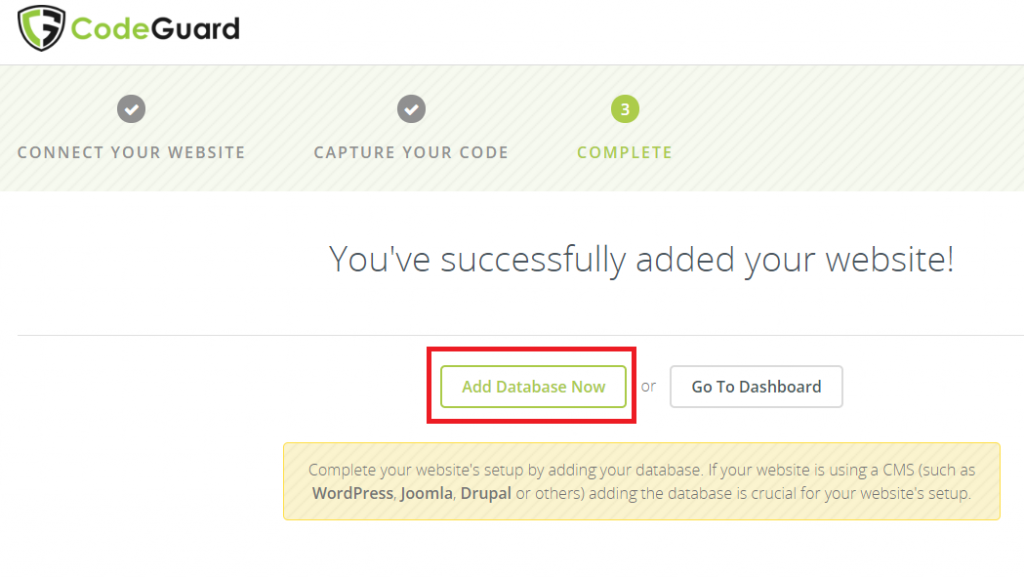
- Once capture code is completed, you will get 2 options “Add Database Now” or “Go To Dashboard” you can select any option
(here we are selecting “Add Database Now”)
- Enter your Database hostname or IP and click “Test Connection”
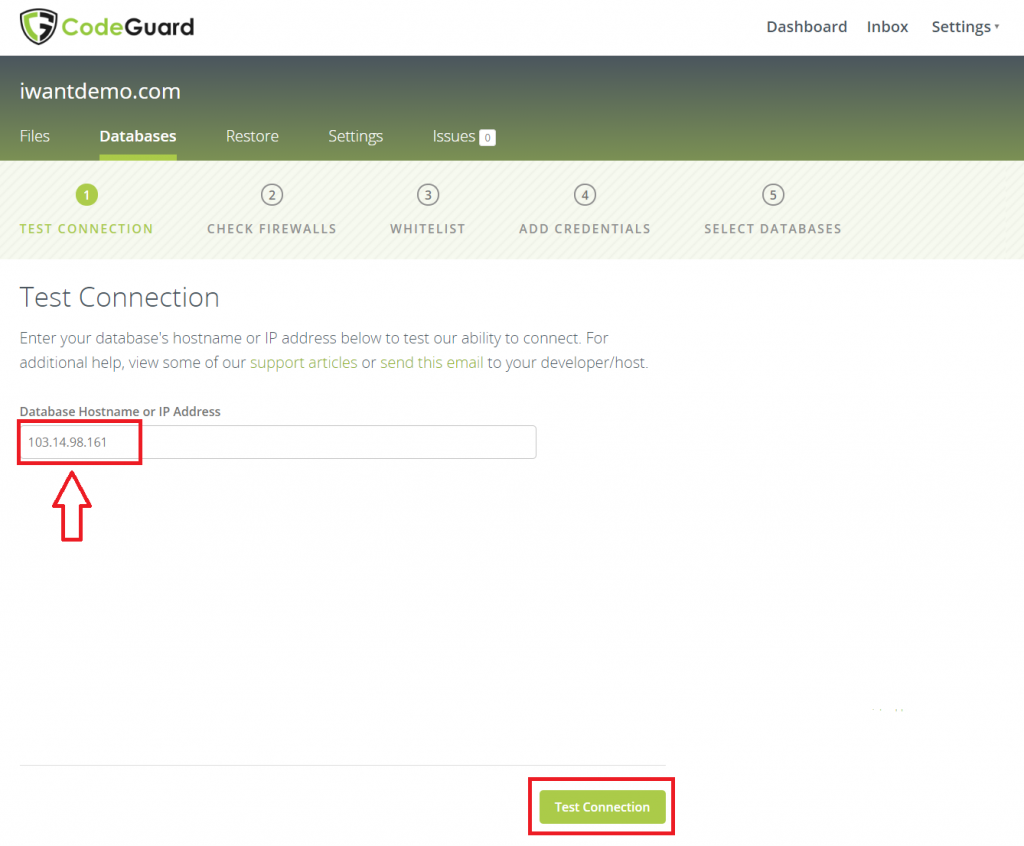
Fig2.5
- Now codeguard will check if it is able to connect to destination database or not.
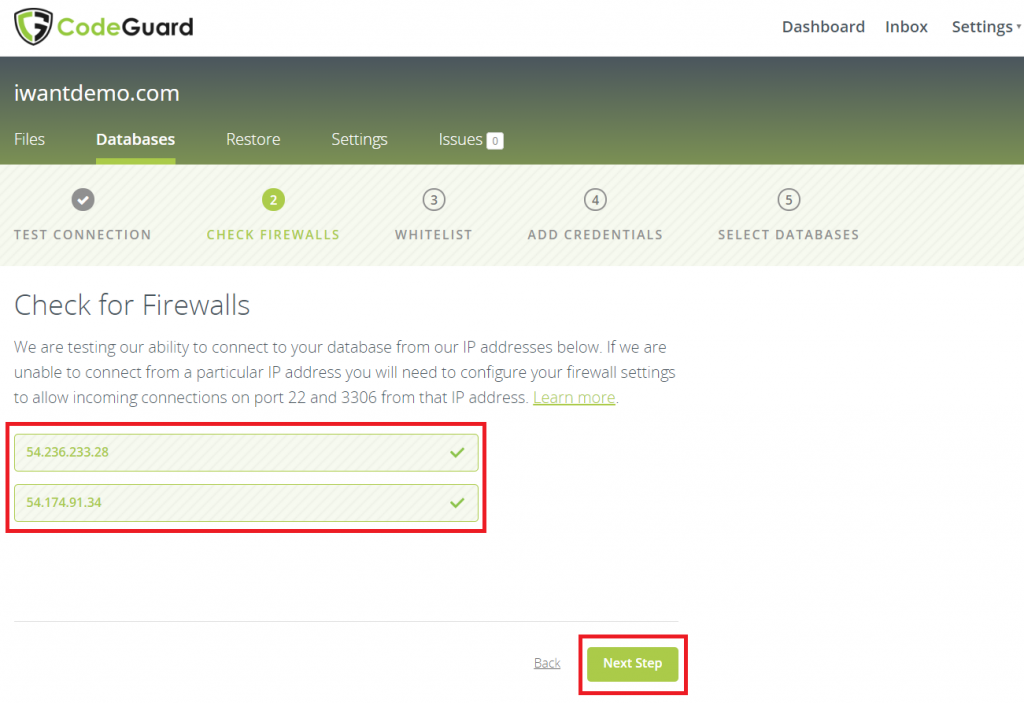
- It will show some IPs which is recommended to be whitelisted on the server.
- Whitelist the same also enter IPs under “Allow remote connection” and click “Next”
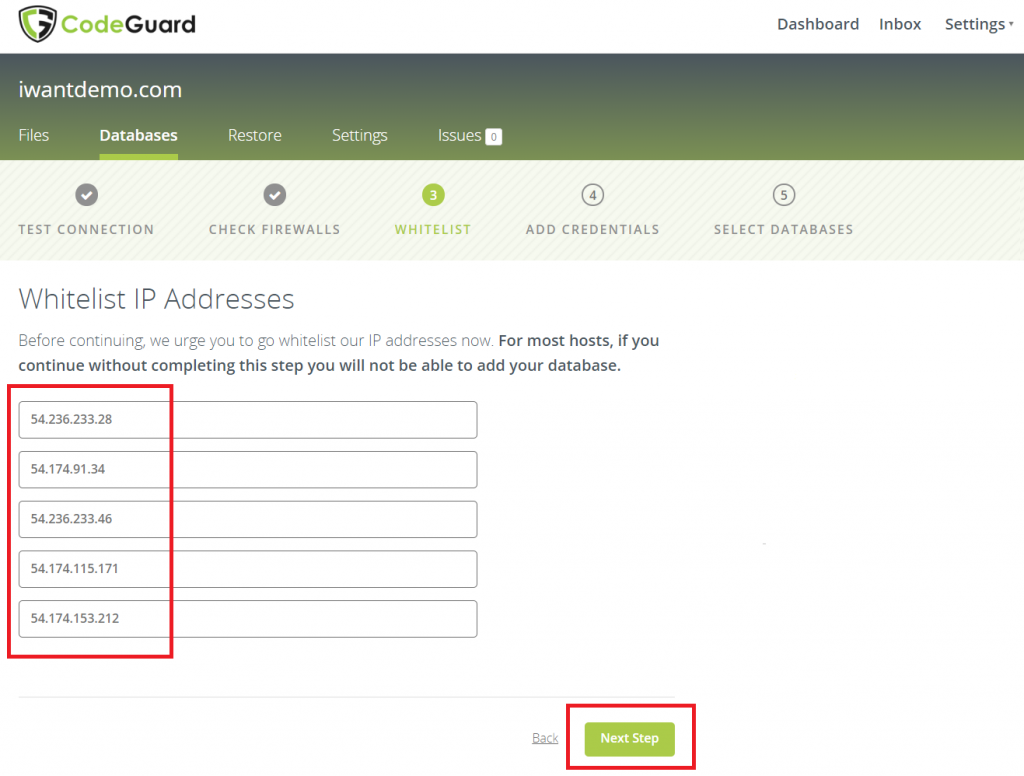
Fig2.7
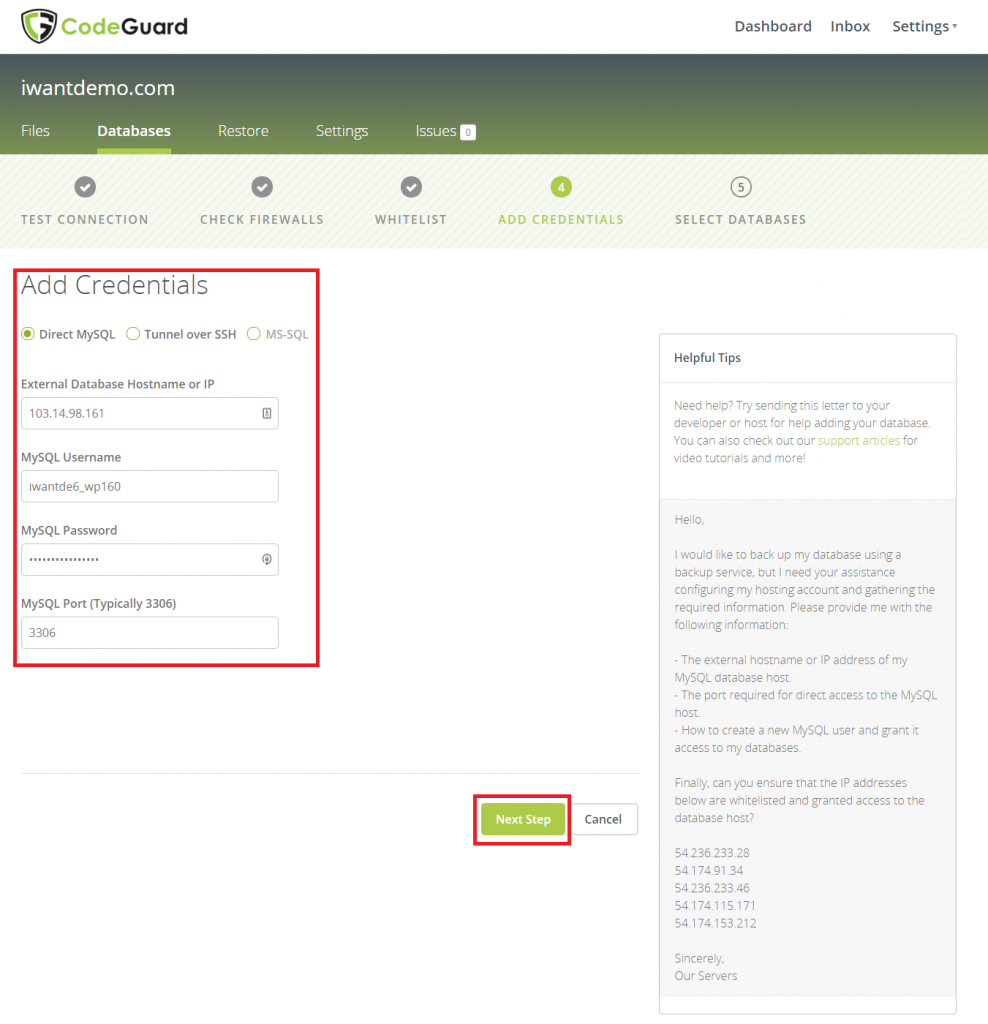
- Now enter your Database Hostname, username, and password and click “Next Step”
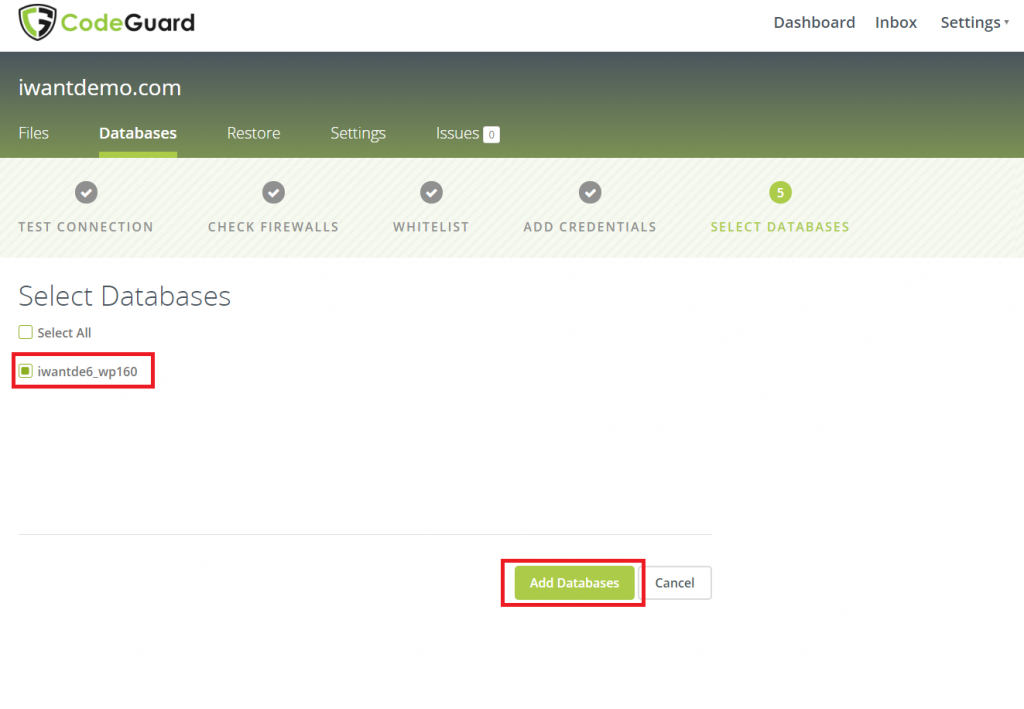
- Once the connection is established, select database from the list and click “Add Databases”.
- The process will backup the database and it will display step by step process activity.
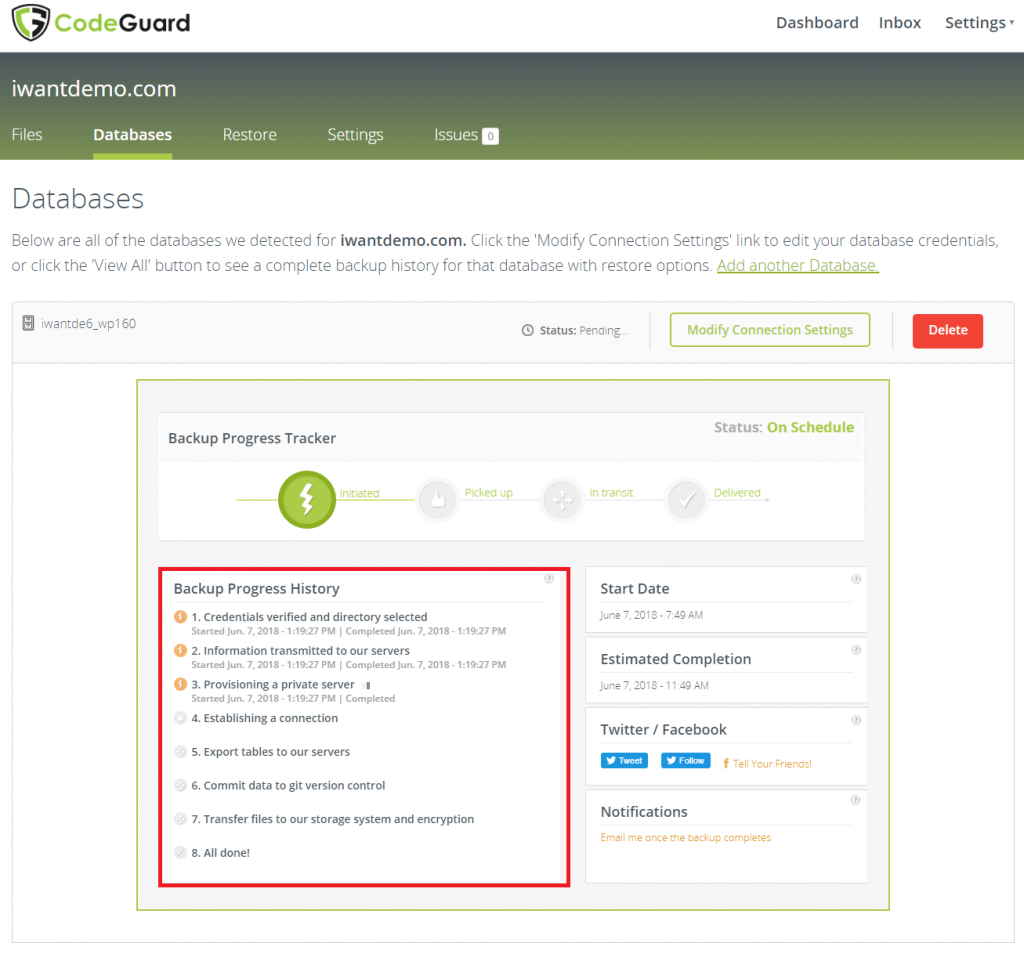
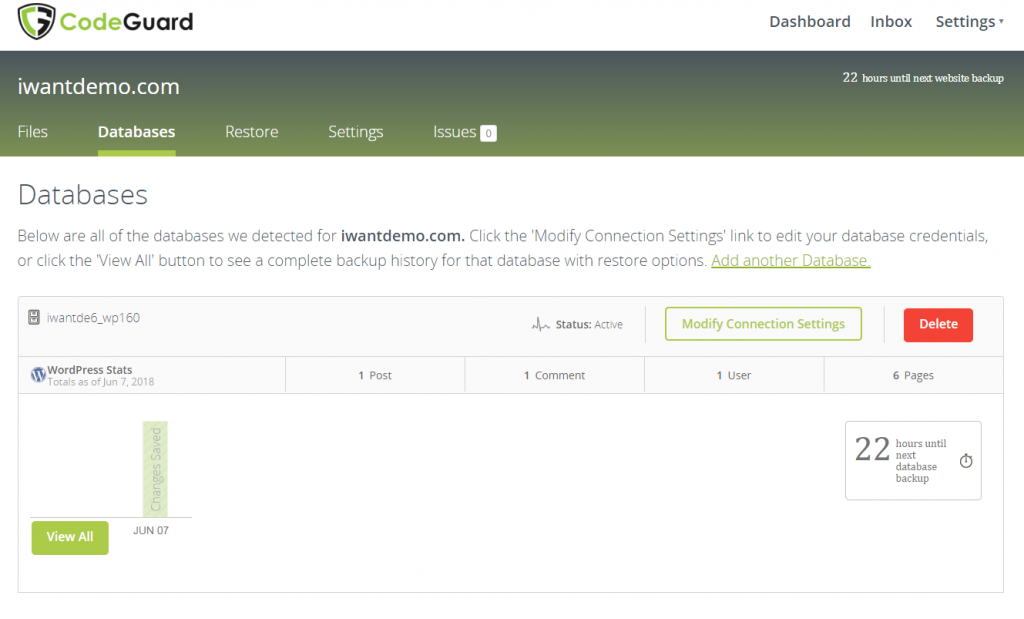
- Once the backup process gets completed you will able to see your backup status under “Files” as well as “Databases” tab.