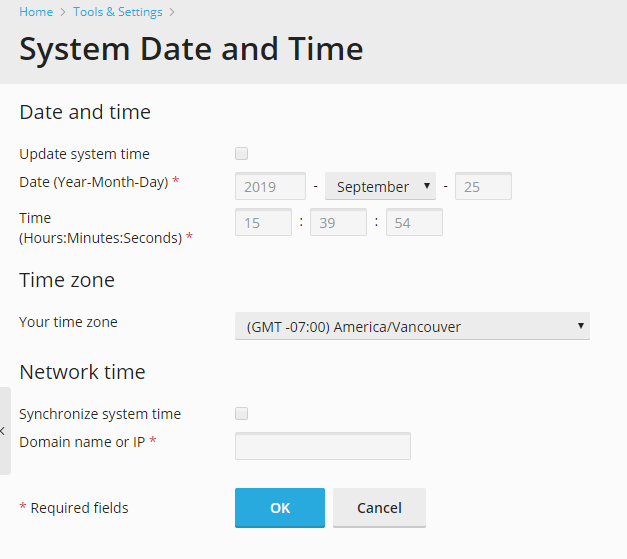
How to set system date and time in Windows server
You can manually set the server date and time through the interface and enable server time synchronization with a Network Time Protocol (NTP) server.
To adjust the system date and time settings:
- Go to Tools & Settings > System Time.
- Change the time and date settings as desired, and select your time zone.
You will need to restart your Plesk-managed server for the time zone change to take effect.
Note: Clear the Automatically adjust clock for daylight saving changes checkbox, if you do not want Plesk to automatically adjust the server clock.
- To synchronize your server time with that of a server running the Network Time Protocol, select the Synchronize system time checkbox, and specify a valid IP address or a domain name.
- Click OK.
Note: Enabling the Synchronize system time function will override any time and date you manually enter in the System date and time fields. Also, make sure that the domain name or IP address you enter for synchronization is a valid NTP server. Otherwise, this function will not work and your server will continue running with its current time settings.